How do I:
- Identify the key role from JIE and setting role criticality?
- Access the succession plan management page for the chosen role?
- Add successors to succession plans?
- Adjust and annotate successor information?


How do I:
Best answer by Alex Williams
The first step is to target a role from Job Intelligence Engine (JIE) to build a succession plan for. Once you’ve identified a key role, use role criticality tags to specify role criticality.
Using filters
You can use filters to help you narrow down key roles. For example, if an HRBP has access to multiple BUs, they can select filters to filter for specific Roles, Business Function, or Locations. Read more about filters in View Filters.
Incorporating role criticality
Role criticality identifies the urgency of succession planning for any given role. HRBPs and managers determine role criticality from a pre-configured set of values. Values are company-specific and assigned to roles deemed urgent or critical. Critical roles can be those that have a high turnover rate or are pivotal to corporate goals.
Role criticality tags are located on the home page in the leftmost table column. Users can filter for critical roles within their organization by adding and filtering tags during a search.
Editing tags
Role criticality tags are edited on the home page.
To edit a tag:
Select the desired succession plan.
Navigate to the overflow menu in the Successors’ column.
Select the overflow menu.
Select Edit role criticality.
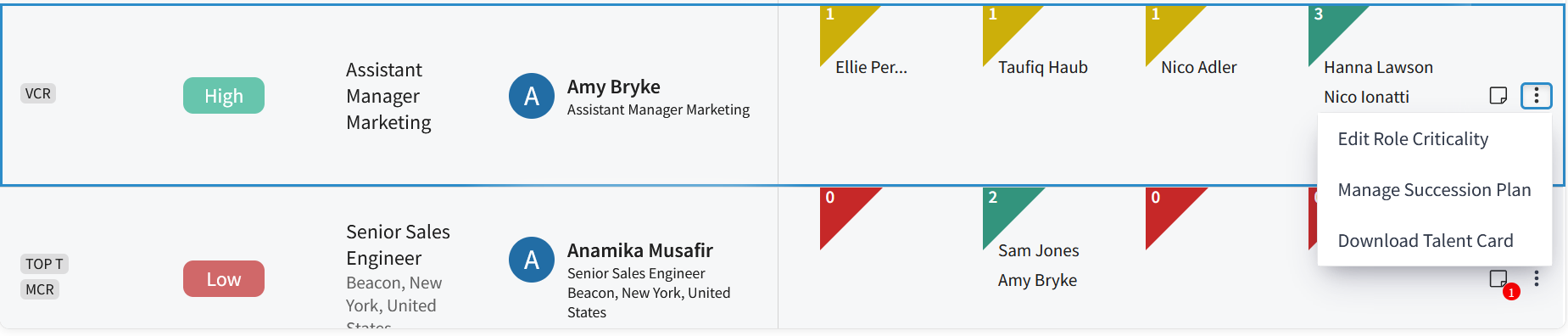
A new window appears with the plan’s Role, Location, and Role criticality. To delete a previously assigned tag, select the x next to the name of the tag. New tags are added using the search bar. Only configured tag names or values appear in the search results. Additional names or values must be added by Eightfold support staff.
Navigate to the succession plan management page
The succession plan management page is designed for deep editing and insight experiences. The page is accessible from the home page by clicking on a plan or selecting the overflow menu in the rightmost section of a plan.
On the management page users can remove successors, rearrange the order of successors, and add notes to plans and successors.
Successor table
The successor table lists all of the successors identified in a succession plan. Similar plan components from the home page are present in the successor table. These components include Role criticality, Succession readiness state, Order, Match score, and Add successor.
The heat map view of the successor table functions based on the addition or removal of a successor. The colors and counts change in accordance with the changes made to the list of successors.
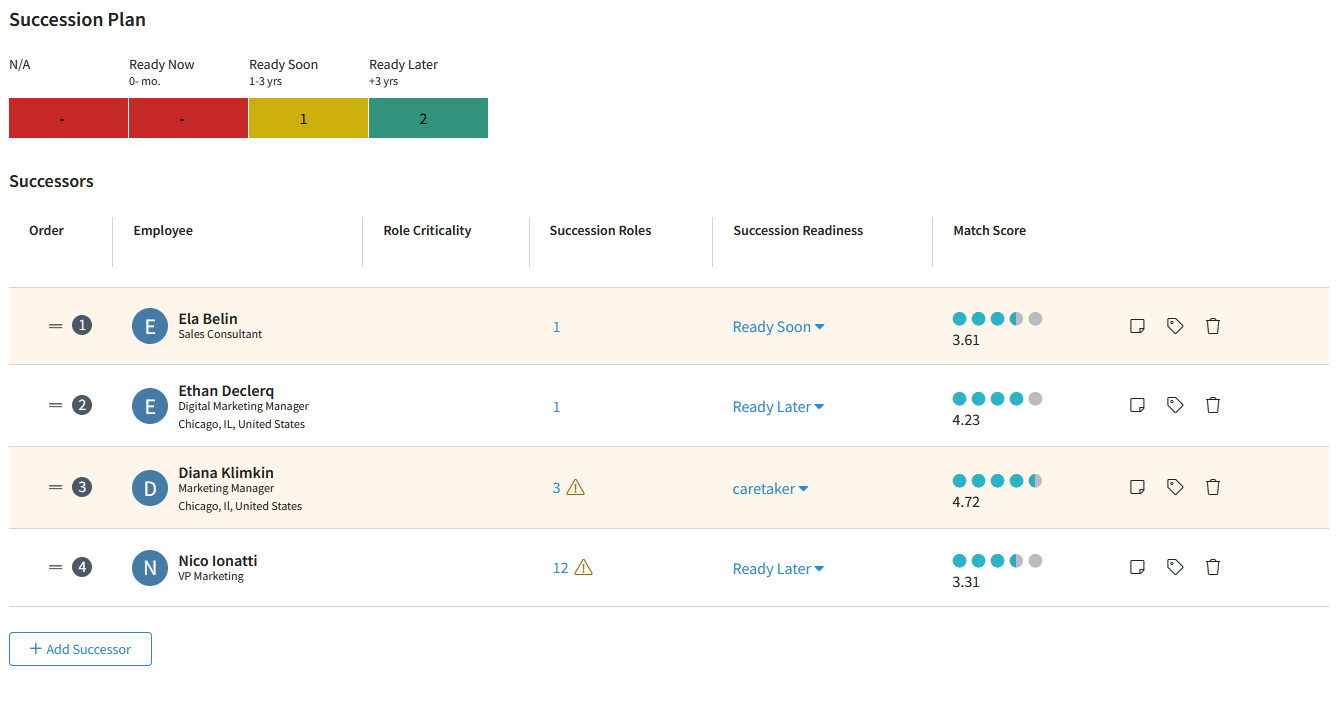
Adding employees to succession plans
Within the succession plan management page, you have two methods for adding successors to a plan. You can manually add employees or use the recommended successors table. As you are viewing employees to add as successor, you can click on their names to enter the HRBP view or Manager view, depending on your permissions. This page contains a profile of relevant career development information.
Option 1: Manually adding successors
Successors can be added with a name search or by adding from the recommended successors’ list. To add a successor using a name search, navigate to the bottom of the successors’ table and select the Add successor button. In the search bar, insert the name or part of the name of the successor you would like to add.
The search bar for adding successors is for names only and will not generate results based on other terms such as title or location.
Option 2: Using the recommended successors table
The second table on the plan management page displays AI-generated recommendations for each role. Recommended successors can be added to the plan by selecting the Add button in the rightmost column of the table.
The unordered list of recommended successors provides the employee’s Name and Role, Time in current role, Succession roles, and Match score.
The Match score feature provides AI-backed successor scores based on a collection of profile data points. Match score insights use a 5-point scale designed for taking actions for or against a successor. Match scores are displayed in the rightmost column of the table.
The Calibrate recommendations button is available at the bottom of the recommendation table. Calibration allows users to fine-tune their recommended successors to better align with succession plan goals and objectives.
Selecting this option takes the user to a page outside of the Succession Planning feature but still within the Career Hub platform.
Adjust the succession plan
As you add successors to a succession plan, you can make the following adjustments to build the plan.
Specify succession readiness
You can specify succession readiness for a given employee from a four-tiered succession readiness state mode. Set the Succession Readiness status as Caretaker, Ready Now, Ready Soon, or Ready Later. For more information, read Understanding succession readiness state.
Successor order
Successor order is based on user preference and can be arranged as desired. To move a successor select the successor’s row and drag and drop the row into the desired location. A small hand with five fingers will appear where dragging is permitted in a row.
Notes section
The notes section is located at the bottom of the succession plan management page. Notes can be added to an individual successor or to the overall succession plan. For more information on adding notes, read Adding notes and actions.
Using talent cards
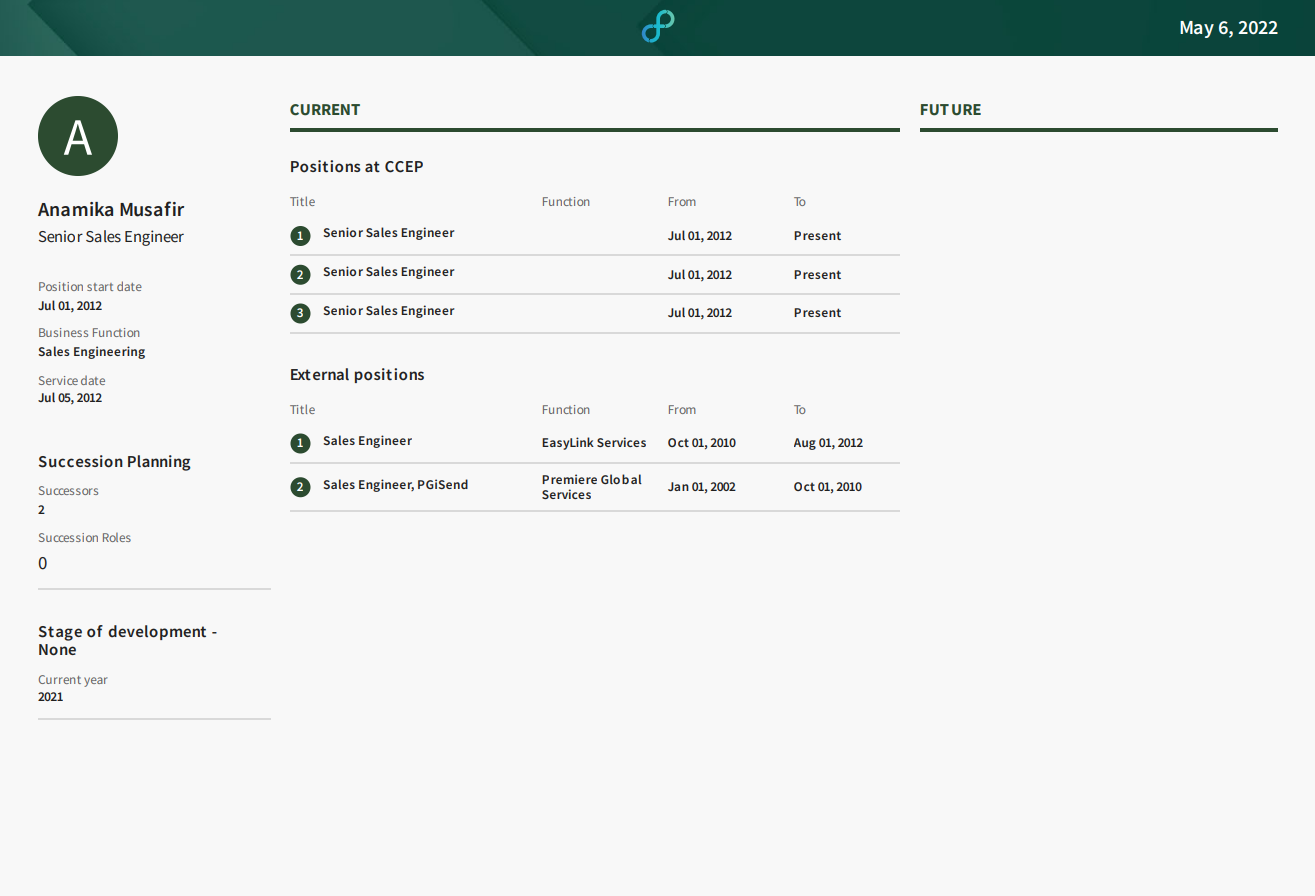
Talent cards provide a summary of the incumbent’s Career Hub profile and succession planning interactions. These cards can be a useful reference to inform how you build a succession plan.
Talent card structure
The following items are present in each talent card:
Incumbent name, role, business function, location, and service date
Number of successors and succession roles
Stage of development and current year
Risk/impact of loss
Current external positions
Future positions
Download date
Downloading a talent card
Access talent cards through the succession planning home page. The download format is PDF.
To download a talent card:
Select the desired succession plan.
Navigate to the overflow menu in the Successors’ column.
Select the overflow menu.
Select Download talent card.
Already have an account? Login
No account yet? Create an account
Enter your E-mail address. We'll send you an e-mail with instructions to reset your password.