Solved

How can users extract resumes or review profiles offline?

  • March 6, 2025
  • 10 replies
  • 67 views

How can users mass extract resumes for all applicants on a job requisition/opening or review them offline?


We frequently have hiring managers and recruiters who want to look through profiles on a requisition while they are offline. Being able to create PDF resume books or having a way to look at profiles offline/add notes on what they reviewed would save a lot of time for our users. Currently, we have to handle this through an extremely manual process where we pull resume books from Workday.

Best answer by dkreiger

@aseth93, The team has share the following. 


1. Exporting profiles and reviewing offline:
 We’re actively working on a feature that will allow users to download a CSV of the pipeline. This file will include key profile information along with a direct link to each candidate’s resume. This enhancement is targeted for pre-GA release by the end of July, allowing teams to review profiles more efficiently offline.
2. Downloading resumes in bulk:
 We understand the desire for a bulk download option; however, due to the size of individual resumes (often 2–3 MB each), this would result in extremely large downloads, which pose performance and scalability challenges. At this time, we do not plan to support bulk resume downloads in the near term.
In the meantime, the upcoming CSV export will offer a streamlined alternative: users can open the CSV, click the provided resume link, and quickly access the candidate’s resume for further action.
We appreciate your input and will continue to explore improvements that balance performance with usability. 

10 replies

dkreiger
Community Manager
  • Community Manager
  • March 6, 2025

Hi ​@aseth93, I have added a few notes below. Please let me know if the highlighted yellow #3 works? I have also added the steps others may want if they want to use the manual Workday method. 

To mass extract resumes for all applicants on a job requisition, you can utilize our integration with various systems. Here are the steps/avenues you can follow:

1. Data Extraction: During the initial implementation or onboarding, we recommend performing a complete data extract of candidates and job requisitions. This can be done using the respective data warehouses or APIs provided by the systems you are integrating with.

2. API Utilization: For ongoing operations, you can use the following API endpoints to fetch resumes and application data:
- To sync resumes and attachments, you can use the endpoint:

services/api/x/rec-resume/v1/resume/job-application/{application_number}/

- For candidate data, including resumes, use:

services/api/Recruiting/JobApplicant


3. CSV Export: If you prefer to review resumes offline, you can export candidate application data to a CSV format. For candidates who applied to a specific position, navigate to the Campaigns tab, select the position, and then click on the Recipients tab. From there, you can filter for recipients that applied and click Export to CSV.


---------------------------------------------------------------------------------------------------------------------------------------------------------------------
To enable users to mass extract resumes for all applicants on a job requisition and review them offline, we recommend the following steps using Workday:

1. Export Business Process Definition Report:
- Log in to your Workday instance.
- Search for “bp: job application”.
- Select the Job Application (Default Definition) from the search results.
- Click on “View Dynamic Definition”.
- Click the Excel icon on the top right side and click download to export the business process definition into an Excel file.

2. Download Job Application Reference ID Report:
- In Workday, search for “create custom report”.
- Select the “Create Custom Report” task.
- Name the report “Job Application Reference ID Report” and select Report Type as “Advanced”.
- Uncheck “Optimized for Performance”.
- Under Data Source, click on “By Primary Business Object” > “Business Process Definition” > “Business Process Definitions”.

3. Create PDF Resume Books:
- While the current process requires manual handling to pull resume books from Workday, you can streamline the process by using the exported reports to compile the resumes into PDF format for offline review.

4. Review and Add Notes:
- Once you have the resumes in PDF format, hiring managers and recruiters can review them offline and add notes directly on the PDF files.

This process will help reduce the manual workload and allow your team to efficiently review candidate profiles offline. 


  • Author
  • Known Participant
  • March 6, 2025

Thanks, Drew. For: 

services/api/x/rec-resume/v1/resume/job-application/{application_number}/

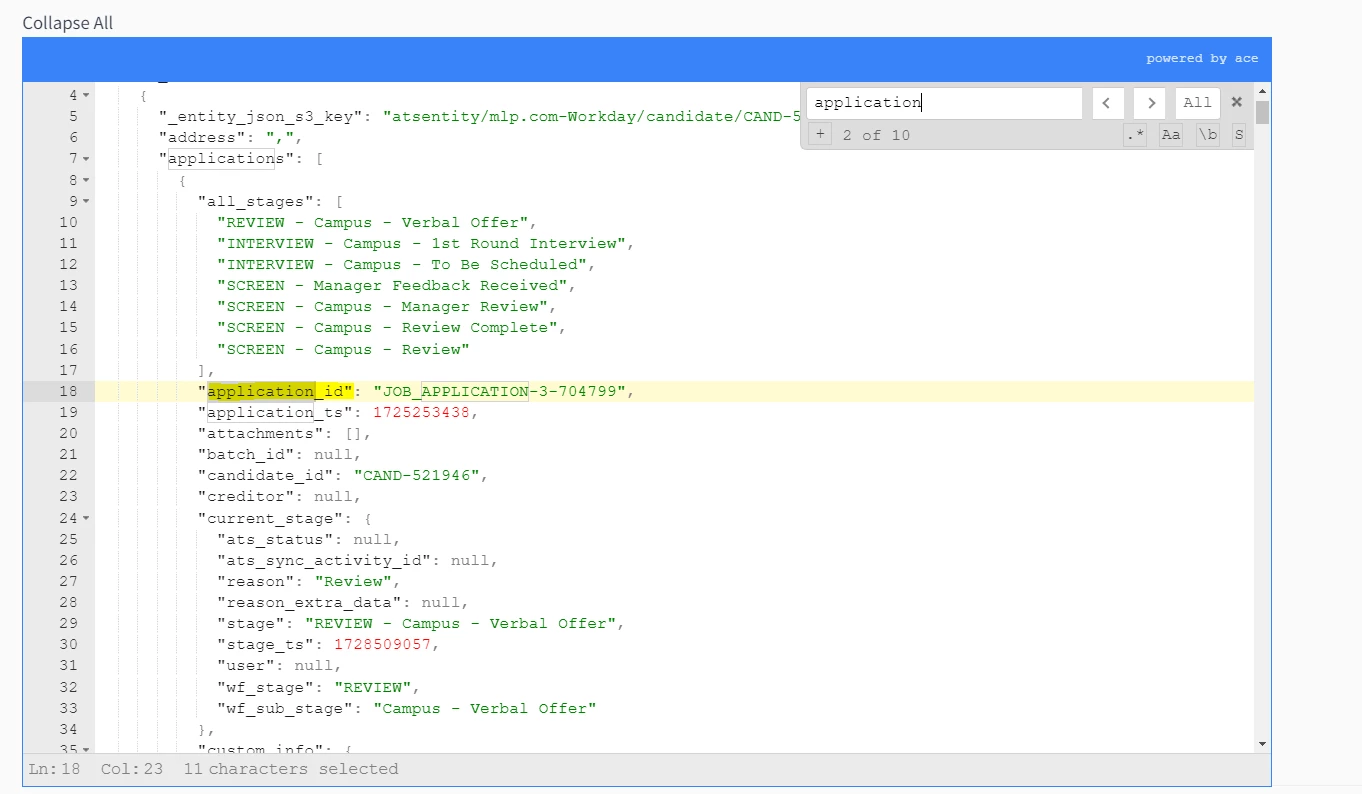
How do I pull the application number? Is this the application_id?


  • Author
  • Known Participant
  • March 6, 2025

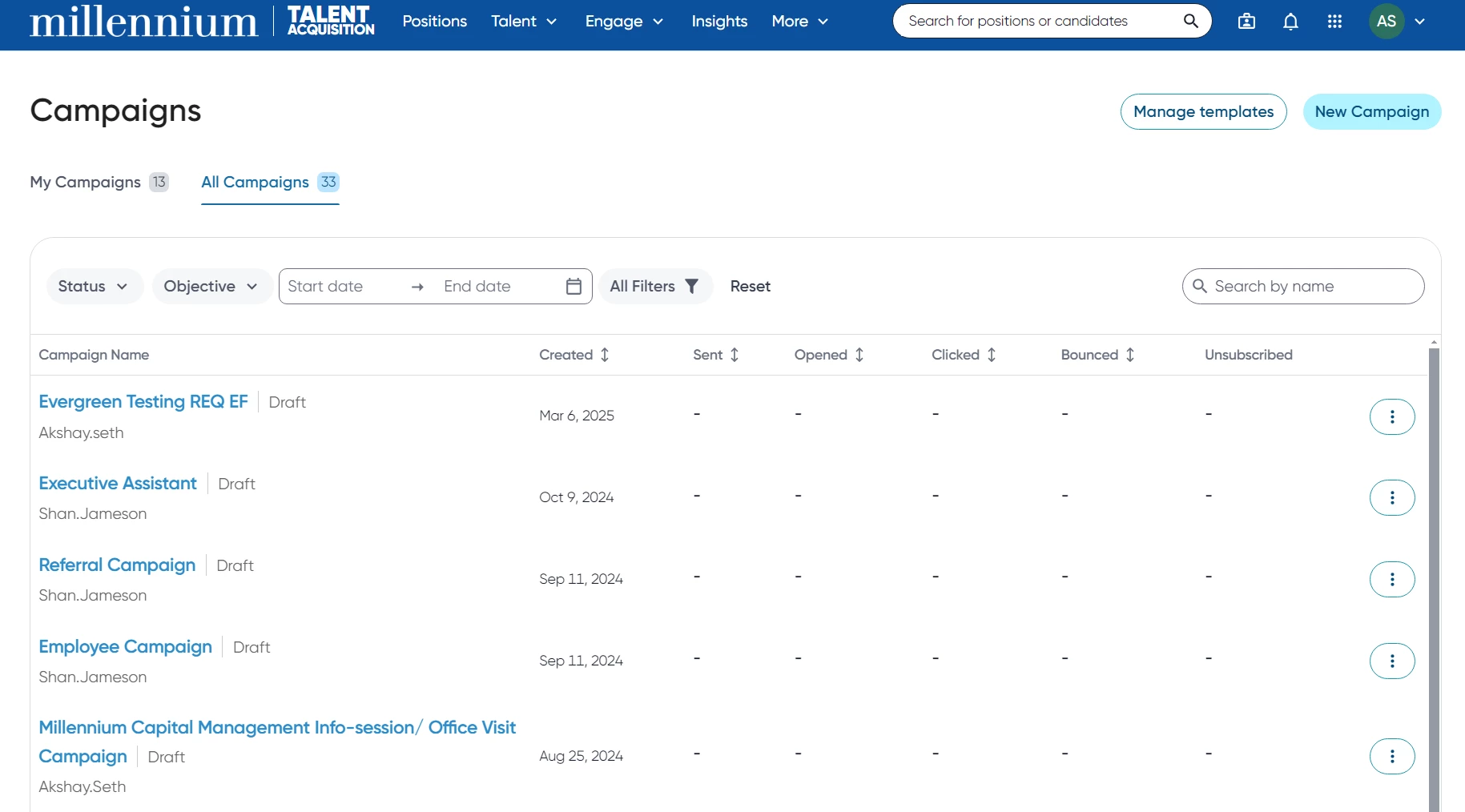
Also, for point 3, I am not seeing a Campaigns tab. Do you mean Campaigns under Engage? When I am there, I do not see the ability to search for a specific requisition.


dkreiger
Community Manager
  • Community Manager
  • March 6, 2025

@aseth93 I have pulled a few other team members in to assist with your following questions. Please allow me some time. 


dkreiger
Community Manager
  • Community Manager
  • June 4, 2025

@aseth93 I have not forgot. I am still reaching out for help! 


dkreiger
Community Manager
  • Community Manager
  • Answer
  • June 9, 2025

@aseth93, The team has share the following. 


1. Exporting profiles and reviewing offline:
 We’re actively working on a feature that will allow users to download a CSV of the pipeline. This file will include key profile information along with a direct link to each candidate’s resume. This enhancement is targeted for pre-GA release by the end of July, allowing teams to review profiles more efficiently offline.
2. Downloading resumes in bulk:
 We understand the desire for a bulk download option; however, due to the size of individual resumes (often 2–3 MB each), this would result in extremely large downloads, which pose performance and scalability challenges. At this time, we do not plan to support bulk resume downloads in the near term.
In the meantime, the upcoming CSV export will offer a streamlined alternative: users can open the CSV, click the provided resume link, and quickly access the candidate’s resume for further action.
We appreciate your input and will continue to explore improvements that balance performance with usability. 


  • Author
  • Known Participant
  • August 20, 2025

Hi Drew,

How can I enable this feature in our sandbox environment?


vkm
  • New Participant
  • August 20, 2025

@aseth93 Please refer to our document which guides on the steps to enable this (feature) using an app on our marketplace.
https://docs.eightfold.ai/positions-TA/export-to-csv

Marketplace app direct link - https://app.eightfold.ai/app_marketplace/app/368b528fdaf6441985e642c370ebb65e?search=TA+pipeline+CSV+export


  • Author
  • Known Participant
  • August 25, 2025

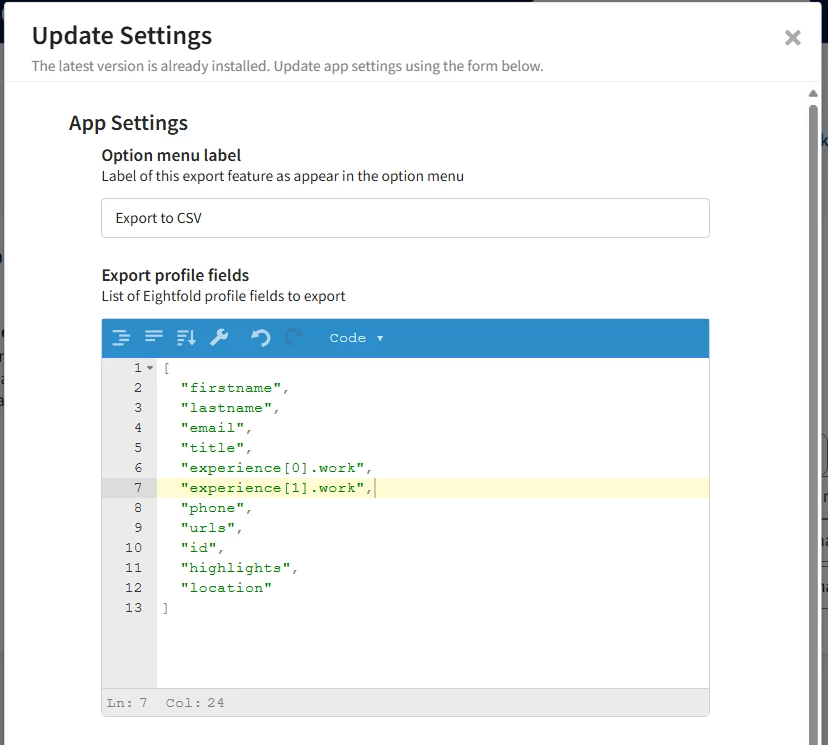
Thanks Vivek, is there a guide or list of fields that I can add here?


  • Author
  • Known Participant
  • August 25, 2025

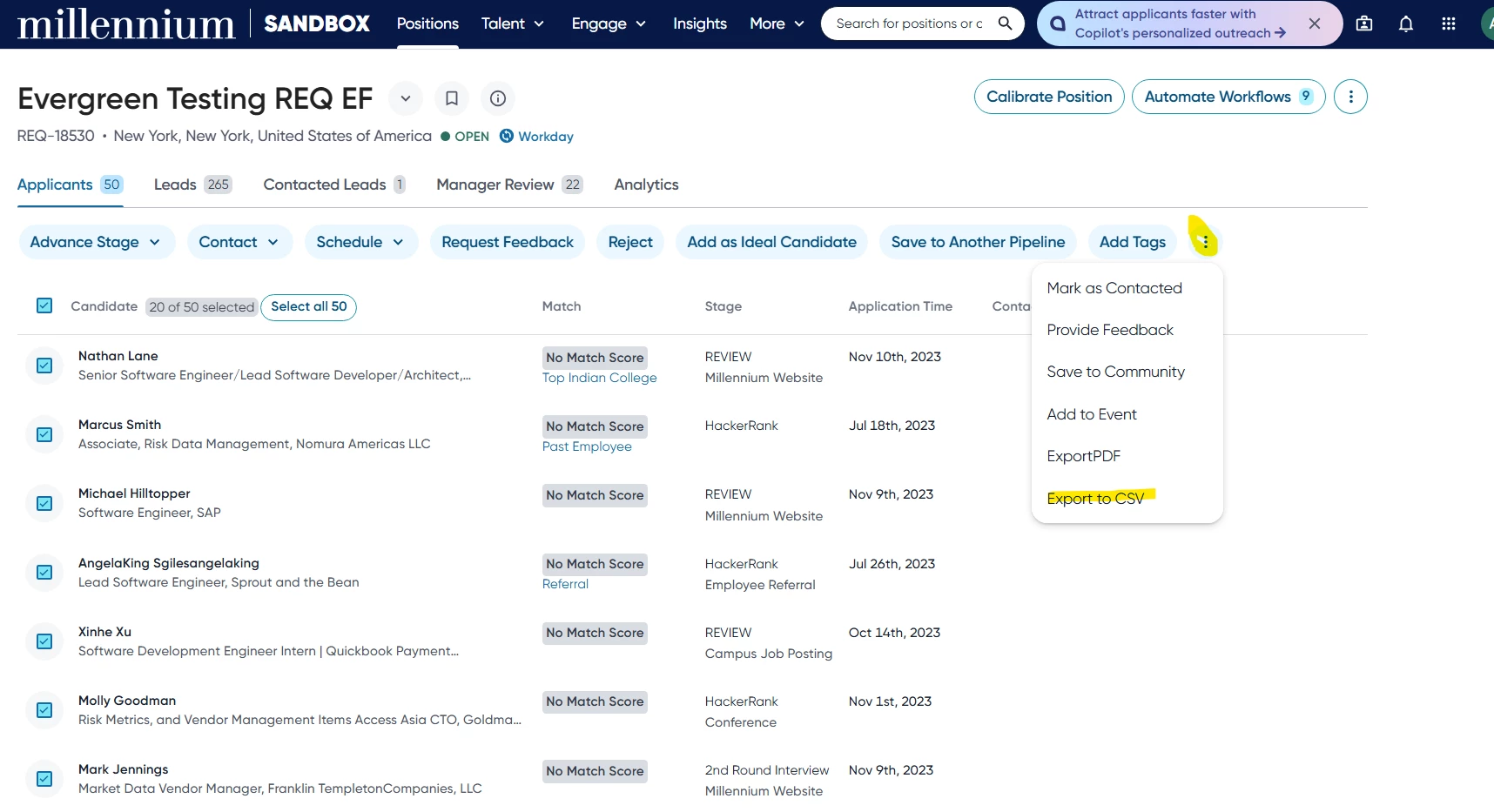
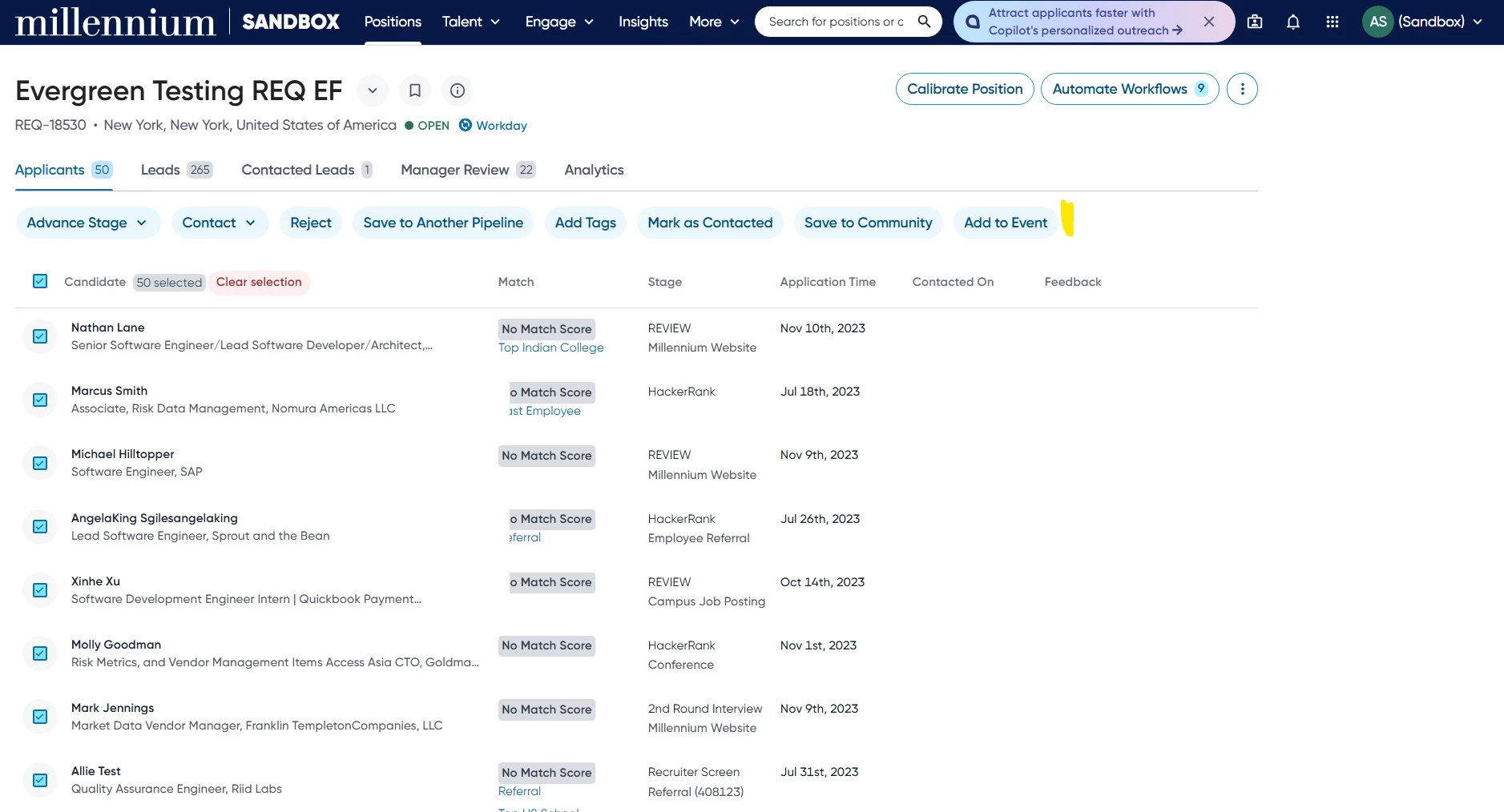
In addition, when I select more than 20 candidates, I notice that the option to export to CSV disappears:


20 selections:


50 selections (the more actions button is gone):